GUI Quick Start
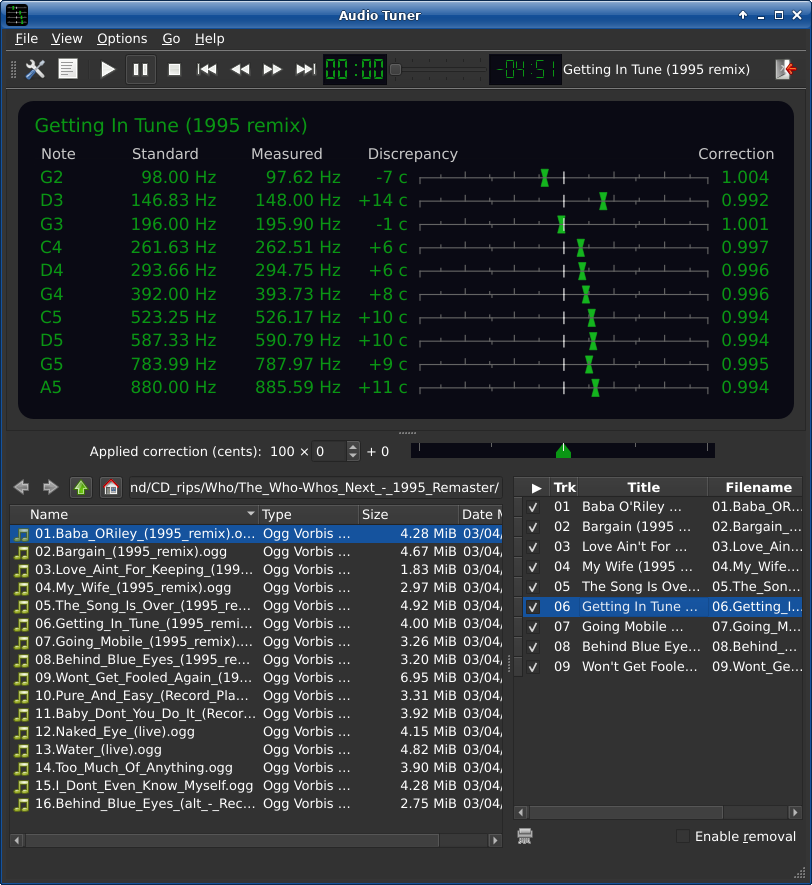
The main GUI, using the Qt port of the Adwaita-dark theme and the Tango icon theme.
Start the GUI by running tuner-gui.
Select some audio files in the File Selector Panel (bottom left), either by double clicking or by highlighting them and pressing Enter.
You can also select files for analysis by dragging and dropping them from a file manager anywhere onto the Audio Tuner window. If you drop a directory instead, the File Selector Panel will go to that directory.
When the analysis is finished, the files will appear in the Analyzed Audio Panel (bottom right). Select one and the results of the analysis will appear in the Display.
If the needles aren’t centered, the music’s pitch is off. Drag the slider in the Quick Tuner to adjust it.
You can also press F2 (or click on the leftmost button on the toolbar) to switch to the Option Panel and play with some options there. Push the Apply to selected button to apply them.
Push the play button on the Toolbar to start playback. If it still doesn’t sound in tune enough, you can keep adjusting the pitch while it’s playing.
Hint
The Correction column in the display gives you the exact correction factor needed to center it’s associated needle. You can also watch the “ghost needles” that appear when you adjust the pitch correction to see when they reach the center.
Hint
Most songs have enough variation in tuning that you can’t perfectly center all the needles at the same time, but don’t worry about it too much. It doesn’t have to be perfect, and your ears have the final say. If it sounds good enough, it is good enough.